
Table of Contents
ToggleOverwatch 2 on Nintendo Switch has been a game-changer for portable competitive gaming, letting players jump into team-based combat wherever they want. But the Switch version raises legitimate questions: Can you actually play Overwatch 2 competitively on handheld hardware? What compromises do you make with performance? And is it worth the download in 2026?
This guide cuts through the noise with exact specs, real-world performance data, and practical tips specifically for Switch players. Whether you’re a casual player wanting to grind the Battle Pass on your commute or a competitive player testing the waters, we’ll cover everything you need to know to make an well-informed choice and get the most out of Overwatch 2 on Switch.
Key Takeaways
- Overwatch 2 on Nintendo Switch delivers the full game experience with cross-platform progression, though docked mode at 60 FPS is strongly recommended for competitive play over handheld’s variable 45–55 FPS performance.
- The Switch version requires 25–30 GB storage, a stable 25+ Mbps internet connection, and ideally a Pro Controller to mitigate Joy-Con limitations and achieve consistent aiming precision.
- Frame rate and controller input create inherent disadvantages against PC and current-gen console players, making competitive climbing above 4500 SR increasingly difficult on Switch hardware.
- Overwatch 2 Switch excels as a portable solution for casual players, Battle Pass grinding, and mid-rank competitive climbing (3000–3500 SR), but isn’t ideal if esports-level performance is your goal.
- Heroes emphasizing positioning and game sense like Reinhardt, Mercy, and Roadhog perform better on Switch than mechanically demanding hitscan heroes like Widowmaker or Tracer.
- Setting up a wired ethernet connection when docked, optimizing control sensitivity per hero, and practicing crosshair placement before engagements are more impactful than hardware specs for improving Switch gameplay.
Is Overwatch 2 Available on Nintendo Switch?
Yes, Overwatch 2 is available on Nintendo Switch as of June 2022. Blizzard released the game free-to-play on the eShop, giving Switch owners direct access to the same core game available on PC, PlayStation, and Xbox.
But, “available” doesn’t mean “fully featured.” The Switch version operates as part of the broader Overwatch 2 ecosystem with cross-platform progression and matchmaking, but it runs under different technical constraints. You’re not playing a watered-down spinoff, it’s the actual Overwatch 2 experience, just adapted for Switch hardware.
As of 2026, the game remains available and actively supported with seasonal updates, new heroes, and balance patches that roll out simultaneously across platforms. The community is smaller than on PC or console, but you’ll still find matches in all regions without excessive queue times at most times of day.
System Requirements and Compatibility
Nintendo Switch Hardware Specifications
Overwatch 2 on Switch requires a standard Nintendo Switch console, any model works. You don’t need a Switch OLED or the newer Switch 2 (though if you’re buying new hardware, OLED offers a better handheld experience with its larger screen). The base Switch model from 2017, Switch Lite, and Switch OLED all run the game identically from a performance standpoint.
You’ll want a stable internet connection (covered in detail below) and ideally a Pro Controller or grip case, since the Joy-Cons’ smaller buttons can feel cramped during intense matches. Third-party controllers like 8BitDo’s offerings work too and often feel more ergonomic for shooters.
Storage and Download Requirements
Overwatch 2 takes up roughly 25–30 GB of internal storage on Switch, making it one of the heftier eShop titles. If your Switch doesn’t have enough space, you’ll need a microSD card. A 128 GB microSD card is the practical minimum: 256 GB gives you breathing room for other games.
Download speeds matter. On a standard home WiFi connection (50+ Mbps), the initial download takes 30–60 minutes. On slower connections, plan for 2–3 hours. The game also patches regularly, expect 1–4 GB updates every few weeks as seasons roll out, so having that extra storage prevents constant delete-and-redownload cycles.
Performance and Graphics on Switch
Resolution and Frame Rate Expectations
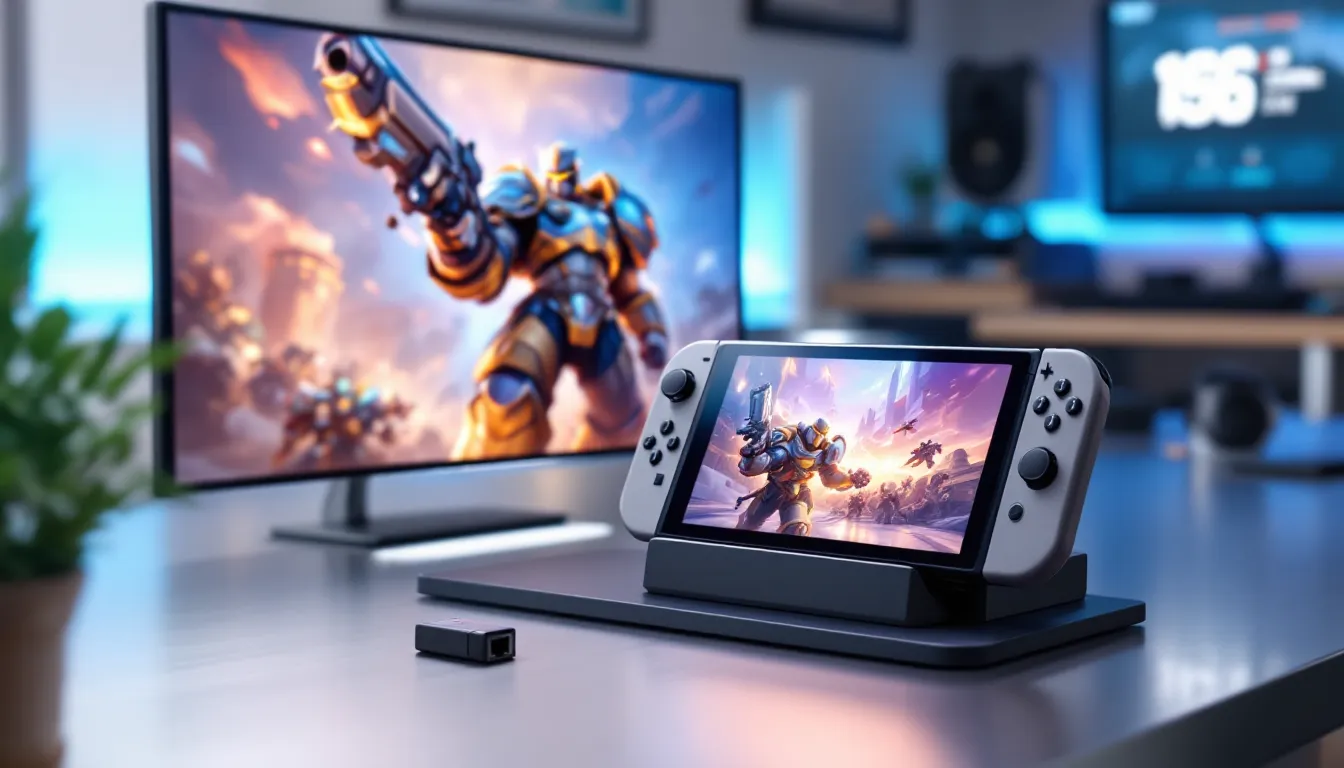
Overwatch 2 on Switch runs at 900p docked and 720p handheld, both at a target of 60 FPS. In reality, you’ll see:
- Docked mode: Steady 60 FPS in most scenarios, with occasional dips to 50–55 FPS during heavy teamfights or when multiple ultimates are active
- Handheld mode: More volatile. You’ll hit 60 FPS in quieter moments, but expect 45–55 FPS during chaotic engagements
The frame rate variability matters for aiming and reaction time. A professional player on PC running a locked 144 FPS will have a noticeable advantage over someone dropping to 45 FPS mid-teamfight. For casual play, it’s fine. For ranked competitive, docked mode is strongly preferred.
Graphically, textures and models are simplified compared to PC and newer consoles. Shadows are flatter, particle effects are less dense, and environmental detail is lower. The artstyle holds up, Overwatch’s bold character designs and color-coding mean the Switch version remains readable and vibrant, but don’t expect current-gen fidelity.
How Switch Performance Compares to Other Platforms
Let’s be direct: the Switch is the weakest platform for Overwatch 2. A side-by-side with a PlayStation 5 or high-end PC shows clear visual downgrade. The frame rate ceiling is also lower, PS5/PC players can run 120+ FPS if their monitor supports it.
But here’s the trade-off: portability. You can’t play a PS5 on the bus. The Switch’s performance is “good enough” for the game’s core appeal, team-based hero shooter action. If you’re grinding ranked and chasing a high SR, you’ll eventually feel the frame rate and input lag constraints. If you’re playing casually or enjoying the game during travel, the Switch hits the sweet spot.
Comparisons to Xbox Series S are relevant too. The Series S (a “budget” next-gen console) runs Overwatch 2 at 1440p–4K at 60–120 FPS depending on your settings. The Switch trade-off is real, but again: the Series S isn’t portable.
Getting Started: Installing and Setting Up on Switch
Download and Installation Process
Getting Overwatch 2 running on your Switch is straightforward:
- Open the Nintendo eShop and search for “Overwatch 2”
- Select the game and press Download
- Wait for the download to finish (30–60 minutes on standard WiFi)
- Launch the game and let it install any day-one patches
- Create or log into your Battle.net account
That last step is critical. Overwatch 2 requires a free Battle.net account to play, even on Switch. If you already have one from PC or another platform, use that account for cross-progression.
The game will prompt you to update before you can play online. These patches are mandatory and usually arrive within the first launch window. Be patient, they’re typically 500 MB to 2 GB.
Account Linking and Cross-Platform Progression
This is one of Overwatch 2’s best features on Switch: your progress carries across platforms. You can:
- Play on PC one day, Switch the next, and your level, cosmetics, and SR rating follow you
- Share cosmetics purchased on any platform across all platforms (including skins, emotes, and sprays)
- Maintain competitive ranking across platforms, if you’re 3500 SR on PC, you start at 3500 SR on Switch
To link accounts, during the first launch, you’ll authenticate with your Battle.net credentials. Make sure you use the same account across all platforms. If you mess this up on first launch, you’ll need to contact Blizzard support to manually link accounts.
One quirk: cosmetics bought with real money (from the shop) are immediately available everywhere, but cosmetics earned in-game (Battle Pass rewards, competitive season rewards) sync within an hour. If you’re worried, wait a few minutes and restart the game to force a sync.
Controls and Gameplay on Nintendo Switch
Default Controller Layout and Customization
Overwatch 2 on Switch defaults to a sensible button layout:
- ZR: Fire/Primary Attack
- ZL: Ability 1
- Y: Ability 2
- X: Ultimate Ability
- L: Secondary Fire (if applicable)
- Right Stick: Aim
- Left Stick: Move
- A: Jump/Interact
This layout works, but it’s not optimal for everyone. Blizzard allows full remapping in the settings, which is crucial. Most competitive Switch players rebind:
- Ultimate to L or R shoulder button (faster access during teamfights)
- Jump to a shoulder button (easier air-strafing, especially for heroes like Tracer and D.Va)
- Abilities to accessible locations depending on playstyle
You can create multiple control profiles and switch between them per hero or per session. Spend time in the Practice Range before ranked matches tweaking your setup.
Tips for Optimizing Your Control Setup
The Joy-Cons are small, which is a real constraint for shooters. Here’s how competitive players adapt:
- Pro Controller or third-party grip controller is strongly recommended. The larger form factor reduces hand strain and gives you better thumb positioning for extended aiming sessions.
- Adjust sensitivity per hero. Hitscan heroes like Widowmaker benefit from lower sensitivity (around 40–50) for precise tracking. Projectile heroes like Pharah or Junkrat can use higher sensitivity (60–70) for faster flick shots. Tanks in tight spaces often want high sensitivity for quick 180-degree turns.
- Enable gyro aiming if you prefer it. Some players find gyro (motion controls) more intuitive for fine-tuning aim. It’s optional and takes practice, but it’s competitive-viable once you master it.
- Practice crosshair placement. Since aiming on controller is inherently more difficult than mouse, pre-aiming enemy positions and keeping your crosshair at head height before engagements matters more on Switch than on PC.
There’s also the handheld factor: Joy-Con drift (a known hardware issue) can ruin your aiming. If your right Joy-Con drifts, it’ll throw off your aim mid-fight. Blizzard offers no workaround, so if drift happens, you’ll need to fix or replace the Joy-Con.
Handheld vs. Docked Mode: Which Is Better for Overwatch 2?
Handheld Performance and Practicality
Handheld mode is where the Switch shines for convenience. You’re playing Overwatch 2 anywhere, on a flight, at a friend’s place, waiting for an appointment. The 6.2-inch screen (or 5.5-inch on Switch Lite) is readable, and the game’s bold art style translates well to smaller displays.
Performance-wise, handheld mode is the compromise. Frame rates dip lower (45–55 FPS in chaotic moments), and the smaller screen makes reading enemy positions slightly harder. Your reaction time will be slightly slower, and aiming feels less precise. If you’re climbing ranked, you’ll notice.
But here’s the honest take: handheld mode is perfectly fine for casual play, arcade modes, and lower ranks (under 2500 SR). Thousands of players grind their main accounts in handheld-only and do fine. If you’re hanging out at 3000 SR, you’re probably pushing the limits of what handheld can support competitively, but it’s not impossible.
Docked Mode Performance and Competitive Viability
Docked mode is where Overwatch 2 on Switch becomes genuinely playable for competitive. Docked performance is noticeably smoother:
- Frame rates hold closer to 60 FPS during intense fights
- The larger TV/monitor screen makes hero positioning clearer
- Input lag is slightly lower (though still higher than PC/current-gen consoles)
- Aiming feels more stable
Docked mode is the default for ranked grind, and if you’re serious about climbing, it’s mandatory. The difference between 45 FPS handheld and 60 FPS docked isn’t just “nice to have”, it’s noticeable when you’re landing shots and timing ultimates.
That said, docked doesn’t mean “PC-competitive.” You’re still on Switch hardware. A skilled docked Switch player can reach 4000–4500 SR in ranked, but pushing beyond that becomes increasingly difficult against PC and console players with better frame rates and input precision. It’s less that docked is bad, more that you’re accepting a handicap inherent to the platform.
Network and Online Connectivity
Internet Speed Recommendations
Overwatch 2 is online-only, so your connection quality directly impacts playability. Here are the real requirements:
- Minimum: 5 Mbps download, 1 Mbps upload (game won’t crash, but you’ll feel lag)
- Comfortable: 25+ Mbps download, 5+ Mbps upload (smooth gameplay, minimal frame drops from network load)
- Optimal: 50+ Mbps download, 10+ Mbps upload (best latency, stable connection during peak hours)
These are downstream requirements. Overwatch 2 itself is lightweight data-wise, it’s not a graphically massive game like Fortnite or Warzone. The key is stability, not raw speed. A consistent 10 Mbps connection is better than a flaky 100 Mbps connection.
WiFi vs. ethernet: If you’re playing docked, use an ethernet adapter (USB-C to ethernet, around $15–25) whenever possible. WiFi introduces latency inconsistency. Handheld obviously requires WiFi, but if you can dock and cable up, do it.
Lag, Latency, and Connection Stability Tips
Latency is the enemy. In Overwatch 2, a 100ms difference in ping is the difference between winning a duel and dying around a corner. Here’s how to diagnose and reduce lag:
Check your ping in-game. Overwatch 2 displays latency in the top-right corner during matches. Anything under 100ms is acceptable. 50–80ms is good. Over 150ms and you’ll feel it.
Reduce background network activity. If your roommate is streaming 4K Netflix on the same WiFi while you’re ranked, you’re losing. Ask them to pause, or enable QoS (Quality of Service) on your router if available.
Close other Switch apps. Yeah, it seems obvious, but the Switch’s OS can be sluggish if you’ve got dozens of apps in recent history. Force-close everything except Overwatch 2 before ranked sessions.
Router placement matters. If your Switch is three rooms away from your router with walls in between, you’re fighting interference. Move closer or reposition your router.
Server region selection. In the menu, you can pick your matchmaking region. Choose the one physically closest to you for lowest latency. If you’re in North America, use NA servers. In Europe, use EU servers. Mixing regions adds 20–50ms latency.
If you’re consistently over 150ms ping, something’s wrong with your setup. Contact your ISP, restart your router, or switch to a wired connection if docked.
Feature Parity: What Works and What Doesn’t on Switch
Available Game Modes and Seasons
Overwatch 2 on Switch has access to all major modes:
- Quick Play: Unranked casual matches, any hero pool
- Competitive: Ranked mode with SR rating, seasonal rewards
- Arcade: Weekly rotating game types (Mystery Heroes, No Limits, 3v3, Deathmatch, etc.)
- Practice Range: Solo training against bots
Seasons roll out simultaneously across all platforms. When a new season launches on PC, it launches on Switch the same day. New heroes, map changes, and balance patches hit everyone at once. The seasonal Battle Pass is identical across platforms, buy it once and progress it everywhere via cross-progression.
The only notable omission is Overwatch 2’s new PvE missions (if Blizzard adds them to the base game). Historically, PvE content has been PC/console-exclusive, though the trend is shifting. Check the current 2026 roadmap for specifics.
Cosmetics, Battle Pass, and In-Game Content
Cosmeticsare completely shared. A skin you buy on PC appears on your Switch account instantly. The Battle Pass works the same way, progress on one platform counts everywhere.
The Shop (cosmetic items for sale) shows the same inventory across platforms, priced in your regional currency. Seasonal cosmetics, limited-time skins, and Battle Pass items are all available on Switch. There’s no restriction on what you can buy or unlock based on platform.
One advantage of the Switch version: it’s free-to-play with no entry barrier. Compared to original Overwatch (which required a $40–60 purchase), Overwatch 2 removes that gate. You can download it for free and decide if it’s for you before spending money on cosmetics.
Pro Tips and Strategies for Switch Players
Best Heroes and Playstyles for Handheld Gaming
Not all heroes are equal on Switch. Aiming limitations and frame rate variance mean some heroes are harder to play effectively. Here’s the breakdown:
Easier heroes on Switch:
- Reinhardt: Big shield, close-range hammer. Minimal aiming required. Frame rate variance doesn’t affect hammer swings.
- Mercy: Point-and-click support. No aiming needed. Positioning matters more than mechanical precision.
- Symmetra: Symmetra’s primary fire is a close-range beam that locks on. Low mechanical ceiling.
- Roadhog: Hitscan shotgun (hook + shot), but the shots are forgiving. If you can hook, you can win 1v1s regardless of frame rate.
Harder heroes on Switch:
- Widowmaker: Her grappling hook is manageable, but landing consistent hitscan bodyshots and headshots against moving targets demands precision aiming. The frame rate dips hurt. Competitive Widowmaker players on Switch are rare for this reason.
- Tracer: Rapid positioning and blink aiming requires flawless controller input. Joy-Con limitations make her frustrating.
- Zenyatta: Discord orb requires precise aim. Bodyshots are forgiving, but headshots are your skill expression.
The meta also shifts based on platform. On PC, Widowmaker/Hitscan-heavy metas favor mouse aim. On Switch, expect more Reinhardt, more Mercy, more Symmetra, heroes that reward positioning and game sense over raw aiming mechanics.
Playstyle tip: Switch players should emphasize macro play (positioning, ultimate economy, rotations) over micro play (mechanical outplays). Land your shots through good positioning, not by out-aiming your opponent. Play around cover, angles, and timing. This is actually good Overwatch regardless of platform, but it’s even more crucial on Switch.
Improving Aim and Reaction Time with Limited Controls
You can’t turn your Joy-Cons into a mouse, but you can optimize around their constraints:
Sensitivity tuning is step one. Test a range of sensitivities in Practice Range against moving bots. Most competitive Switch players use 45–65 sensitivity depending on hero. You want to be able to track a moving target (Tracer zigzagging) without overshooting, and flick-shot enemies emerging around corners. Lower = better tracking, higher = faster flicks. Find your balance.
Crosshair placement before engagement. Pre-aim where enemies will be. If you’re holding a corridor, place your crosshair at head height where an enemy will peek. This removes half the aiming work, you’re not searching for the target, just confirming they’re there.
Aim trainers and custom games. Before ranked, spend 15–20 minutes in Practice Range against hard bots or in Workshop aim trainers. Warmup. Your first ranked match of the day is worse than your fifth. Many Switch players skip this step and wonder why their aim feels off.
Gyro aiming as an option. If default stick aiming feels clunky, try gyro controls (motion aiming). It’s a steeper learning curve, but some players find it more intuitive. It’s not better or worse, it’s personal. ProSettings actually tracks pro player settings across games, and if you see competitive Switch players, check their gyro preferences.
Accept the ceiling. There’s a hard ceiling to what you can achieve aiming-wise on a controller vs. a mouse. Once you hit that ceiling (usually around 4000–4500 SR), further improvement requires hero pool expansion and game sense, not raw aim.
Common Issues and Troubleshooting
Frame Rate Drops and Performance Problems
Problem: Frame rate drops to 30–40 FPS during teamfights.
This is normal during chaotic moments in handheld mode, but if it’s happening docked, something’s wrong. Solutions:
- Restart the game. Memory leaks can cause gradual slowdown over long sessions. Play for 3–4 hours, restart, and performance bounces back.
- Reduce video cache. In settings, clear your game cache (in Data Management, not a in-game setting). This freed up space can help.
- Close background apps. Again, force-close everything except Overwatch 2.
- Check system storage. If your Switch is nearly full, performance tanks. Free up 5+ GB of space on internal storage.
- Update firmware. Make sure your Switch OS is fully updated. Outdated firmware can cause performance regressions.
If you’re handheld-only, frame dips are just the platform’s reality. Docked mode should hit 55–60 FPS consistently: if it doesn’t, one of the above fixes usually helps.
Connection Issues and Error Codes
Problem: “Connection Lost” error mid-match.
This is frustrating and usually not your fault, but here are diagnostics:
- Check your WiFi signal strength. If bars are low, move closer to router or switch to ethernet if docked.
- Restart router. Unplug for 30 seconds, plug back in. Wait 2 minutes for full reboot.
- Check Blizzard status page. If servers are down or experiencing issues, you’ll get disconnects across all regions. Wait for a fix.
- Verify your internet speed. Run a speedtest online. If you’re below 5 Mbps download, that’s your issue.
- Disable VPN if using one. VPNs can cause latency spikes and disconnects in online games.
Problem: “Unable to authenticate” or “Connection failed” on startup.
- Re-login to Battle.net account. Press L+R+A+B simultaneously in the game’s menu to open the log-out option. Log back in.
- Check your Switch’s system clock. If the system time is wrong by hours, authentication fails. Settings > System > Date and Time, set to automatic.
- Clear friend list cache. System Settings > Data Management > Manage Software, select Overwatch 2, and clear cache (not save data).
Problem: High latency (100+ ms ping) even though good internet.
- Check server region. Confirm you’ve selected the closest region (NA for US, EU for Europe, etc.)
- Reduce network interference. 2.4 GHz WiFi is more congested than 5 GHz. If available, connect to your router’s 5 GHz band.
- Exit Power Saving mode if docked. Ironically, battery-saver modes can limit WiFi performance. Use Performance mode when docked.
Most issues resolve with a restart. If problems persist after these steps, check DualShockers for current known issues or contact Blizzard support.
Is Overwatch 2 on Switch Worth Playing in 2026?
Here’s the verdict:
Play Overwatch 2 on Switch if you prioritize portability. You’re getting a legitimate version of the game, fully updated with the latest heroes and balance changes. Cross-progression means your competitive rating and cosmetics follow you everywhere. For casual play, weekend Arcade sessions, and grinding Battle Pass rewards during travel, it’s exceptional value.
Don’t expect competitive parity with PC or current-gen consoles. The frame rate (30–60 FPS depending on mode) and controller input lag create an inherent disadvantage against players on PC running 144 FPS or PlayStation 5 running 120 FPS. If you’re pushing 4500+ SR or playing in esports tournaments, Switch is a handicap.
The middle ground is real. A casual player enjoying Overwatch 2 in handheld mode, or someone grinding ranked to 3000–3500 SR docked, will have a blast. The Switch isn’t bad at Overwatch 2, it’s just the trade-off between power and portability.
Storage and connectivity matter more than hardware. Ensure you’ve got 30+ GB free, a stable internet connection, and ideally a Pro Controller. These setup investments dramatically improve the experience and are honestly more important than the Switch’s CPU/GPU specs.
In 2026, Overwatch 2 on Switch remains a solid option if you already own a Switch and want portable hero shooter action. If you’re buying hardware specifically for Overwatch 2, a PS5 or gaming PC would be smarter. But if the Switch is your primary gaming device, or if portability is your main concern, it absolutely holds up.
Conclusion
Overwatch 2 on Nintendo Switch is a legitimately playable version of the game that opens up competitive hero shooter gaming to portable devices. The trade-offs are real, lower frame rates, controller limitations, and a smaller player pool, but the core experience is intact. You’re not buying a watered-down spinoff: you’re playing the same game that’s on PC and PlayStation, just adapted for handheld hardware.
The key to success on Switch is setting realistic expectations and optimizing your setup. Docked mode with a Pro Controller and a wired connection transforms the experience. Cross-progression means your progress matters across all platforms. And access to seasonal content, new heroes, and competitive ranked climbing keeps the game fresh.
If portability is your priority and you want to keep grinding Overwatch 2 between destinations, Switch is the way. If you’re chasing top-500 rankings or professional play, you’ll eventually bump into the platform’s limitations. For everyone else, casual players, Battle Pass grinders, and mid-rank competitive climbers, Overwatch 2 on Switch delivers the goods. Give it a shot. It’s free to download, and you might surprise yourself with how good it feels once you’ve dialed in your controls and found your playstyle.


